04. Getting an API Key
L4 A03 Getting An API Key
Reference Documentation
Get an API Key
- Open the debug version of the
google_maps_api.xmlfile. The file includes a comment with a long URL. The URL's parameters include specific information about your app. - Copy and paste the URL into a browser.
- Follow the prompts to create a project in the Google API Console. Because of the parameters in the provided URL, the API Console knows to automatically enable the Google Maps Android API.
- Create an API key and click Restrict Key to restrict the key's use to Android apps. The generated API key should start with
AIza. - In the
google_maps_api.xmlfile, paste the key into thegoogle_maps_keystring where it saysYOUR_KEY_HERE. - Run your app. You have an embedded map in your activity, with a marker set in Sydney, Australia. (The Sydney marker is part of the template, and you change it later.)
Rename mMap
MapsActivity has a private lateinit var called mMap which is of type GoogleMap. By Kotlin naming conventions you will want to change it to be called map instead.
- In
MapsActivity, right click onmMapand click Refactor/Rename…
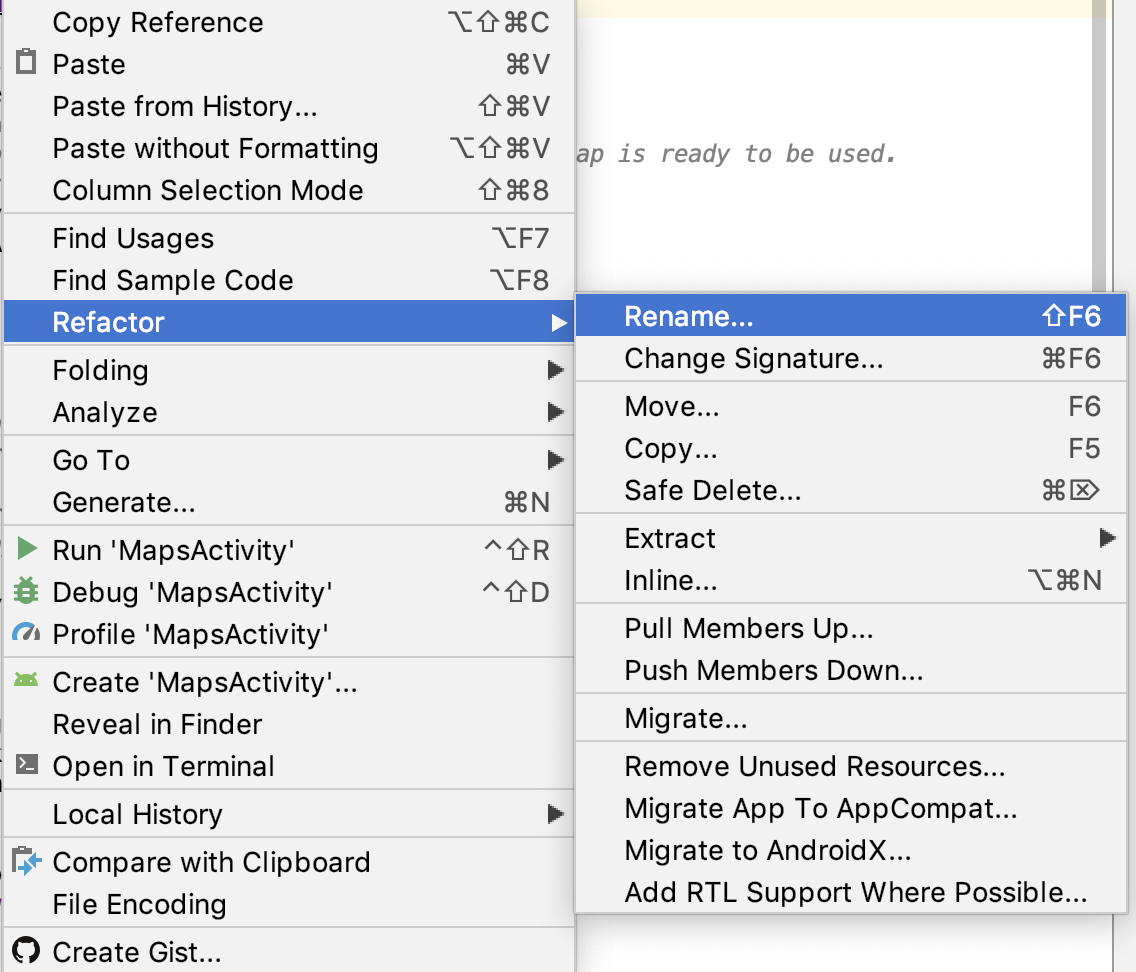

- Change the variable name to
map.
Notice how all the references tomMapin theonMapReady()function also change tomap.
